Remote work trends have made an efficient home office essential. This section explains how a comfortable desk setup supports daily work and long-term health. The Mayo Clinic defines ergonomics as the science of workplace comfort that cuts injury risk.
A well-designed arrangement prioritizes natural posture. Adjusting your chair, desk placement, and monitor height turns a basic workstation into a professional environment. Research shows a proper setup can lower pain and fatigue from long computer hours.
This short guide gives clear steps to protect physical health while you work. By tuning each element—from screen angle to chair support—an office becomes a space that helps productivity and reduces strain.
The Importance of an Ergonomic Workspace
Good ergonomics transform a workspace into a system that supports long hours without added strain. The Occupational Safety and Health Administration defines ergonomics as the science of designing the workplace to fit the worker. Applying those principles in an office can cut musculoskeletal disorder risk by up to 60%.
Optimizing the work environment also helps focus and stamina during an eight-hour day. Studies show productivity can rise about 20% when a workspace aligns with user needs. That gain comes from less fatigue and fewer breaks for pain relief.
Practical steps link tools to the body. Your desk and chair should work in harmony to support natural movement and reduce chronic injury.
- Reduce injury risk: an ergonomic area protects long-term health.
- Boost efficiency: a planned setup improves task flow and focus.
- Encourage movement: shift posture often to stay productive.
Selecting the Right Chair for Lumbar Support
Choosing the right chair changes how the body copes with long hours of sitting. Proper selection protects the spine and reduces lower back strain. This section explains what to look for in adjustability and materials.
Adjustability Features
The seat must allow the user’s height to be set so the feet rest flat on the floor and thighs sit parallel to the ground. Aim for a seat pan depth that leaves 2–3 fingers between the back of the knee and the chair edge.
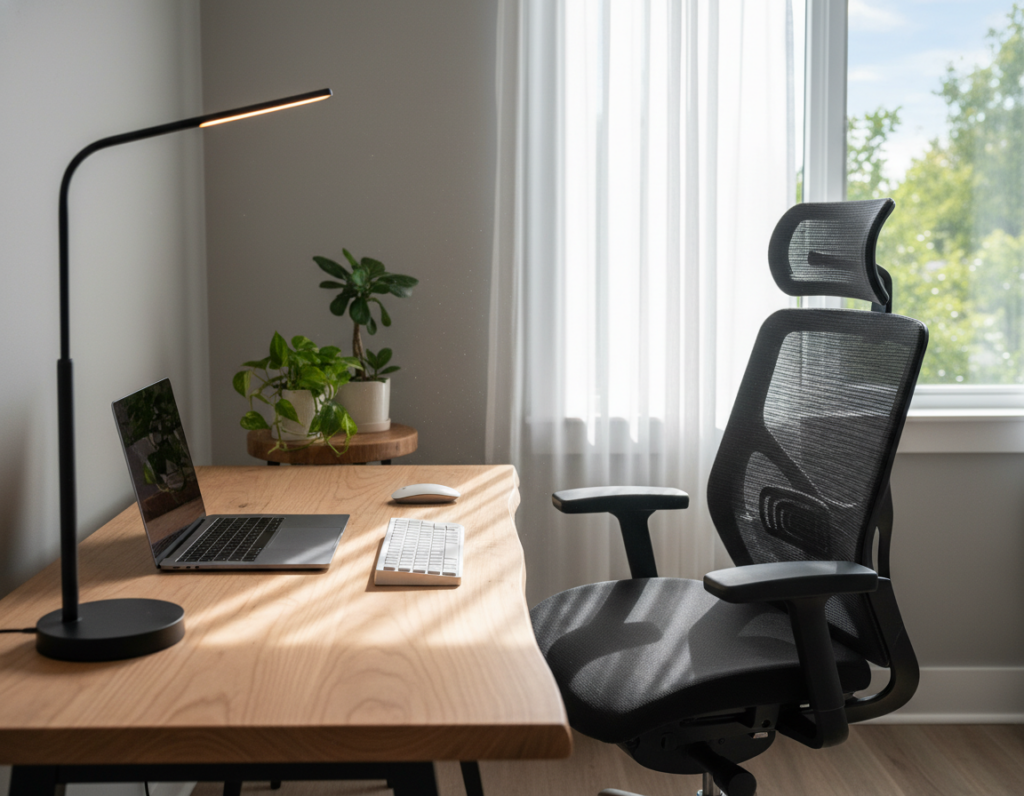
Backrests should follow the natural curve of the spine and provide targeted lumbar support to prevent lower back pain. Set armrests at resting elbow height so shoulders stay relaxed while typing or mousing.
- Seat height: many chairs list a standard of 17.5 inches, but adjustability matters more than the number.
- Depth & alignment: correct depth prevents pressure and improves circulation.
- Armrests: adjustable armrests reduce shoulder tension and help maintain neutral posture.
Choosing Breathable Materials
Breathable mesh or perforated fabrics help regulate temperature and cut sweat during long use. A cooler seat reduces distractions and lowers the chance of discomfort from overheating.
Investing in a high-quality chair is an investment in the body. For recommendations and comparisons, consult a trusted buyer’s guide like best office chair reviews to match features with user needs.
Achieving a Comfortable Desk Setup
Proper alignment of work surfaces helps the body resist strain during long hours. For most seated users, an ideal desk height is about 27 inches. When standing, 43.5 inches fits many people.
Standard tops near 29.5 inches often sit too high and match a 6’4″ elbow level. If the surface is too tall, people tend to shrug their shoulders. That motion increases tension in the lower back and neck.
Elbows should rest at a 90-degree angle to cut shoulder and neck stress. The work area should let your feet rest flat so the spine stays neutral. A neutral posture protects the lower back and keeps energy steady.
- Adjustable height helps you match resting elbow height and avoid shoulder strain.
- Alternate positions by using a sit-stand option to boost blood flow about 15% and reduce fatigue.
- Support the body so it remains free from tension and can sustain longer focus.
For a step-by-step guide to ergonomics and measurement tips, consult this ergonomic desk setup essentials.
Optimizing Monitor Placement for Eye Health
Small changes in monitor position have outsized effects on vision comfort and posture. Place the top of the monitor at or slightly below eye level so the neck stays neutral. Keep the screen about an arm’s length away — roughly 20 to 30 inches — to avoid leaning forward.
Ideal Height and Distance
Set the monitor so the natural gaze falls near the top third of the display. Tilt the screen 10–20 degrees away to match the typical downward line of sight.
Reducing Screen Glare
Glare forces the eyes to work harder and increases eye strain. Use blinds, reposition lights, or add an anti-glare filter to keep contrast clear.
Managing Multiple Monitors
When using more than one screen, place the primary monitor directly in front and angle the secondary to reduce head rotation. Laptop users should pair the laptop with an external monitor to maintain proper height and limit neck eye strain.
“Follow the 20-20-20 rule: every 20 minutes look at something 20 feet away for 20 seconds.”
- Tip: Keep the main screen at eye level to cut neck strain.
- Tip: An arm length (20–30 inches) distance reduces squinting and fatigue.
- Tip: Use angled secondary screens to minimize head turns.
Proper Keyboard and Mouse Positioning
Keeping input tools close to the torso helps the user rely on the chair for support while typing. This reduces reach and lets the backrest maintain upright posture.
Place the keyboard at or just below resting elbow height to keep a neutral wrist angle. That position helps the wrists stay straight and lowers the risk of long-term strain.
Maintaining Neutral Wrist Posture
Neutral wrists protect the median nerve and reduce carpal tunnel pressure. Avoid traditional wrist rests; they can increase tunnel pressure.
Instead, use a palm support sized to match the keyboard height. An articulating keyboard tray can set the correct 90-degree elbow angle when standard desk height is too high.
- Keep the keyboard mouse pair close so elbows remain near the body and the shoulder is not overreached.
- Use an external keyboard and mouse with a laptop to avoid awkward reaching and neck strain.
- Position the mouse as close to the shoulder as possible to reduce arm and wrist discomfort.
“A neutral posture, supported by the chair, is the ultimate goal when arranging input devices.”
Small changes in keyboard and mouse position, combined with correct chair and desk height, prevent repetitive strain and make long work sessions less painful.
Incorporating Movement and Microbreaks
Short, regular movement breaks reset focus and cut the physical toll of long screen hours. A microbreak is a 30–60 second pause from work that can include a quick walk or simple stretches.
Taking 2–3 microbreaks per hour reduces fatigue and discomfort linked to prolonged computer use. Movement helps spinal nutrition and lowers pressure on spinal discs.
Dr. Alan Hedge recommends cycles such as 16 minutes sitting, 8 minutes standing, and 2 minutes of stretching every half hour. These short changes support circulation and overall health.
Follow the American Optometric Association’s 20-20-20 rule during breaks to rest the eyes: every 20 minutes look at something 20 feet away for 20 seconds.
- Prevent physical discomfort: brief movement reduces aches from long sitting.
- Protect posture: frequent position changes make good alignment easier to maintain.
- Boost energy: short walks improve circulation and cardiovascular stamina.
“A steady pattern of microbreaks preserves focus and lowers the strain of intensive work.”
Managing Lighting and Screen Glare
Balancing light levels and angles lowers reflections and preserves clear screen contrast. Aim for 500–750 lux in the work environment; that range reduces eye strain and makes reading and typing easier.
Place the task light opposite the writing hand to cut shadows and keep the bulb shade angled so the light source is not visible. This reduces glare on the monitor screen and limits neck eye strain.
Perpendicular positioning of the monitor relative to windows prevents harsh reflections. Poor lighting is a major contributor to headaches and eye strain, which can hamper daily productivity.
As people age, the corneal lens changes and older adults need more contrast—about 250% more than those in their 20s. Adjustable lighting helps everyone maintain clear contrast and reduces long-term strain.
- Tip: Use layered lighting—ambient plus task—to keep the workspace evenly lit.
- Tip: Position lights to avoid direct reflection on the monitor and to protect eye comfort.
- Tip: Check light levels with a meter or app to reach the IES recommended range.
“Good lighting not only protects the eyes but also makes the workspace a more pleasant and efficient place to work.”
Organizing Desk Accessories for Efficiency
Placing items by frequency of use shortens reach and protects posture over long hours. A clean surface helps the user move without distraction and supports quick task flow.
Prioritize Accessibility
Keep the keyboard and mouse within arm length away so the user avoids repeated stretching. Position frequently used tools on the top surface that is easiest to reach.
Utilize Desk Organizers
Use trays, vertical file holders, and a small magnetic board like FluidStance’s The Slope to group pens, notes, and chargers. Organizers cut visual clutter and speed retrieval.
Manage Cables And Wires
Bundle cords with clips and run them under a cable tray. Proper cable management prevents tangles and reduces trip hazards on the floor.
Elevate Essential Tools
Raise the monitor to eye level with a stand so the neck stays neutral. Align monitor height and chair armrests so the feet rest flat on the floor and the hands reach the keyboard at a safe height.
- Tip: Keep laptop and extra monitors positioned to limit head turns.
- Tip: Match desk height and chair settings for consistent posture.
- Tip: Use organizers to free up usable space and reduce stress.
Conclusion
Small, steady changes to how one arranges tools and furniture produce outsized gains in health and focus.
Adjusting the chair, monitor, and keyboard can cut neck and lower back strain and reduce eye strain. These moves protect posture and preserve the wrist and back during long work periods.
Movement matters: frequent microbreaks and position changes keep the body resilient and improve circulation. A better work environment yields clearer focus and fewer interruptions from pain.
This short guide gives practical steps to optimize your workstation. Invest a little time now to save your body from chronic aches and to make future workdays more productive and healthy.