Small changes can make a big difference when people want clearer, more confident video calls. The MacBook Air with M4 chip (2025) is priced at $899 and offers a sharp webcam that helps elevate presence on camera.
Choosing a reliable laptop is the first step. A fast device reduces lag and keeps the picture steady during a busy day.
Simple tweaks to lighting, background, and camera height improve perceived quality. This guide shows easy ways to adjust a small workspace so colleagues see someone organized and clear on screen.
When people use the right tools and habits, their meetings run smoother and feel more focused. The right setup turns a casual room into a place that supports good communication and consistent video results.
Defining Your Professional Home Office Setup
A clear, dedicated workspace helps people switch into focused work quickly. Creating a distinct area signals the brain that it is time to concentrate and meet the day’s tasks.
The desk anchors the room. Choose a desk that offers enough surface for a laptop, notes, and a few essentials. A well-sized desk supports better posture and reduces clutter.
Good design balances style and function. A tidy workspace minimizes interruptions and makes it easier to stay on task. This way, the quality of each work session improves and comfort lasts through the day.
- Pick a desk that fits your daily tools and keeps items within reach.
- Create storage zones so the space remains organized and calm.
- Match furniture to personal taste while keeping usability first.
This short guide shows that when people use the right desk and layout, they form a reliable home office that supports long-term health and efficiency.
Selecting the Ideal Workspace Location
A small spare bedroom or a quiet alcove often makes an ideal place for concentrated work.
Dedicated Rooms
Choosing a dedicated room helps people signal that they are in work mode. A separate room reduces interruptions and keeps the desk clear of daily clutter.
Place the laptop on a stable desk and position the desk so natural light can be used without glare. This improves the quality of on-screen calls and overall comfort.
Quiet Corners
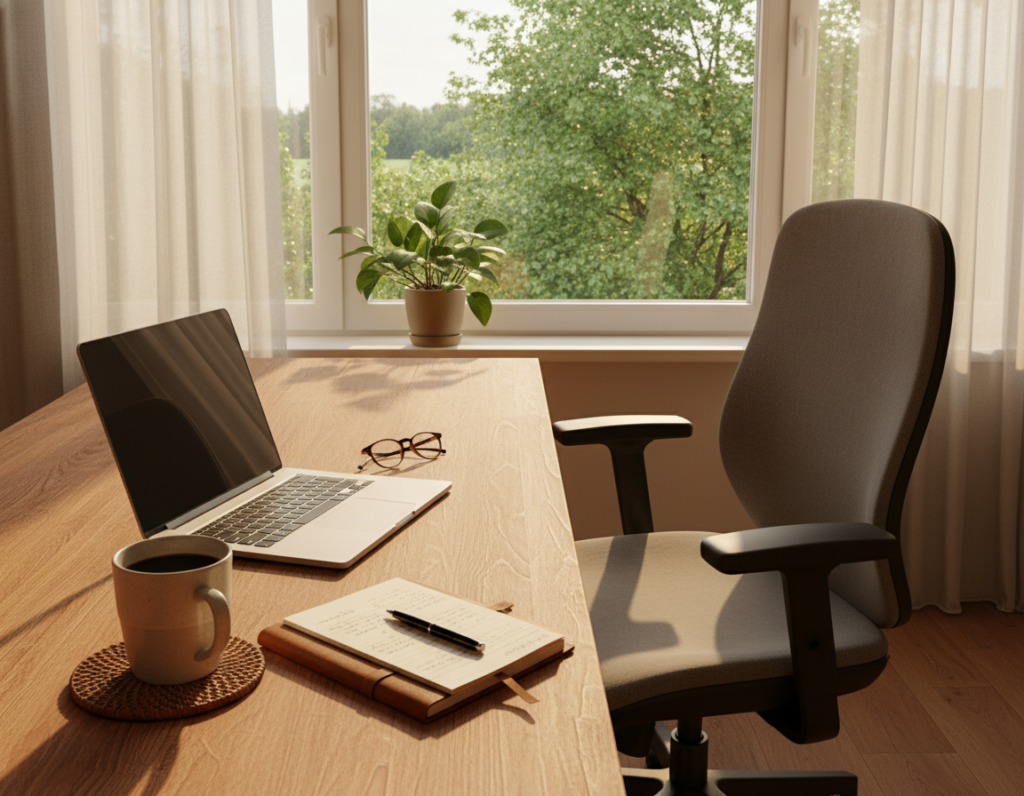
A quiet corner can also work well when space is limited. Many find that facing a window gives the eyes a way to rest during brief breaks.
- Keep the desk area distinct from living areas to preserve balance between home and work.
- Prioritize good design and comfort so the workspace supports longer focus.
- Evaluate each room for noise, light, and privacy before committing.
Choosing the Right Desk for Your Workflow
The right desk blends storage, height control, and surface area to support tasks.
The Branch Four Leg Standing Desk costs $949 and offers motorized height adjustment that helps people alternate between sitting and standing during the day.
Many users find that motorized adjustment reduces back discomfort and improves comfort. A high-quality desk design also adds storage and a wide surface for a laptop and other tools.
- Alternate sitting and standing to improve posture and energy.
- Choose a stable desk with room for a laptop, monitor, and notes.
- Prioritize ergonomic design to keep daily work efficient and comfortable.
This guide stresses that standing desks are a smart investment for better long-term health. When people use a desk that fits their workflow, the workspace becomes more functional and keeps quality high throughout each day.
Investing in Ergonomic Office Chairs
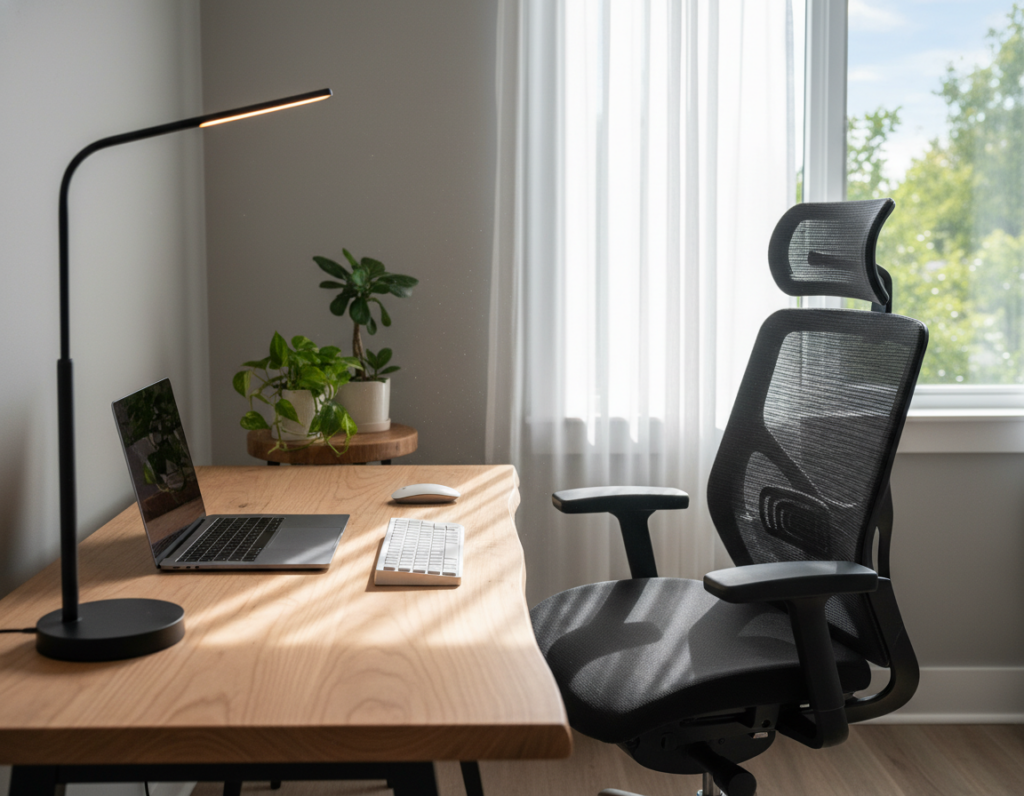
A supportive chair changes how the body feels after a long day at the desk. Choosing a quality office chair helps reduce neck and shoulder strain and keeps focus steady during long calls or tasks.
Lumbar Support Essentials
Good lumbar support keeps the spine aligned and reduces pressure on the lower back. The Herman Miller Embody, priced at $1,995, is an example of a high-end option that delivers long-term support and comfort.
Adjustability matters. A proper chair lets users change seat height, tilt, and backrest to match their body and desk height. This is especially helpful when they alternate between sitting and using a standing desk.
- Pick a chair that supports the spine for long work days.
- Check adjustability—height, back angle, and lumbar tension are key.
- Test how the chair fits your desk and the overall workspace design.
This guide recommends treating the chair as a core part of the desk and room arrangement. When people use a well-fitted chair, they protect their body and preserve productivity for years to come.
Optimizing Your Laptop or Desktop Performance
When the computer keeps up, meetings and edits flow without interruption. A solid SSD and at least 16GB of RAM are the quickest upgrades for smoother multitasking.
Choose the right device for the job: Many people prefer a fast desktop for heavy editing and gaming, while a laptop offers flexible mobility for a hybrid work day.
Keep the desk and display matched — a high-quality monitor lets you see more windows at once and reduces time spent switching tabs. This improves overall productivity and comfort.
- Upgrade to an SSD and increase RAM to cut load times.
- Calibrate the monitor display and set an efficient screen resolution.
- Use background process limits and maintenance tools to preserve performance.
This guide stresses that a tuned laptop or desktop makes the workspace dependable. When people use a powerful computer, the day flows in a simpler, more efficient way.
Enhancing Productivity with External Monitors
Adding one or two external screens often transforms how someone manages tasks and communicates during a busy day.
The Dell 32 Plus 4K HDR QD-OLED Monitor, at $850, brings exceptional color accuracy and sharpness for detailed work. A high-resolution monitor like this makes text crisper and images truer, which reduces eye fatigue over the work day.
Screen Resolution Benefits
Higher resolution improves clarity for spreadsheets, design files, and long documents. Clear text and accurate color help maintain comfort during extended sessions.
Dual Monitor Configurations
Many people find a dual monitor configuration the best way to increase screen real estate. One screen can hold reference material while the other hosts active tasks, which speeds review and editing.
- Placement matters: Position monitors at eye level on the desk to protect posture.
- Choose quality: Match resolution and color accuracy to the role—design work needs truer color, while coding benefits from sharp text.
- Workflow gains: Multiple monitors create a workspace that supports complex projects and sustained productivity.
Utilizing Monitor Mounts for Better Posture
Adjustable mounts let screens follow the line of sight, which keeps posture aligned through the day.
An arm like the Ergotron LX Monitor Arm ($190) offers wide motion and stability for monitors up to 34 inches. It lets users set the ideal screen height and angle to cut neck and shoulder strain.
Using a monitor arm reclaims desk space and creates cleaner storage around the laptop or desktop. That free space improves design and visual flow, so the workspace feels less crowded.
The right mount supports transitions between sitting and standing. When the screen stays steady, people move without losing view or comfort, which helps productivity during a long work day.
- Ensure the mount matches the monitor weight and VESA pattern.
- Position the screen so the top edge sits near eye level for neutral posture.
- Choose a mount with a solid clamp or grommet to protect the desk surface.
Investing in a quality monitor mount raises the overall quality and comfort of an office area. It is a simple, lasting way to improve posture and make the best use of available space.
Managing Cables and Power Connections
Simple power consolidation can turn a messy desktop into a neat, efficient area. Start by grouping cords by function and routing them behind the desk to free visible space.
Keep power and data tidy. A hub like the Plugable USB-C 9-in-1 Hub ($50) consolidates power and connections for laptops, monitors, and other devices. This reduces the number of plugs at the outlet and shortens cable runs across the desk.
Cable Management Strategies
Use simple tools. Cable sleeves, adhesive clips, and under-desk trays hide cords and protect connections. Velcro ties let someone reorganize quickly when a device changes.
- Place the hub near the laptop to centralize power and data lines.
- Label power cords so monitors and peripherals are easy to trace.
- Route monitor and desktop cords along a single path to reduce tangles.
Good management keeps power connections secure through the work day and improves the look and comfort of the workspace. Every desk benefits when cables are controlled—productivity rises and distractions fall.
Selecting Keyboards for Comfort and Speed
Swapping to a tactile mechanical keyboard often improves speed and lowers wrist strain. The Logitech MX Mechanical Mini Wireless Keyboard is a compact choice that combines satisfying switches with a small footprint for a crowded desk.
A good keyboard matches hand size, typing style, and daily tasks. Many find that mechanical switches give clear feedback, which aids accuracy during long work sessions on a laptop. A device with stable key travel reduces errors and keeps productivity steady.
- Choose a keyboard that fits the wrist and hand to limit strain.
- Compact designs free desk space while keeping essential keys close.
- Pick switches that balance speed and comfort for coding, writing, or gaming.
- Consider wireless models for fewer cables and better device placement.
A quality keyboard is more than a tool—it’s central to an efficient workspace. Investing in the right layout and switch type helps sustain comfort and maintain output across daily tasks.
Improving Precision with Ergonomic Mice
Swapping to a mouse with an ergonomic shape instantly sharpens pointer accuracy and reduces fatigue. The Logitech MX Master 3S pairs a comfortable form with programmable buttons to cut repetitive strain on the wrist.
A quality mouse gives finer control for precise tasks like editing, design, and gaming. It also complements a keyboard mouse combination to make long sessions smoother.
Fit matters. The right shape should match grip style and the desk height so the hand stays neutral. That small change improves comfort and preserves wrist health over time.
- Choose high sensor accuracy to boost productivity on detailed work.
- Pick a mouse with customizable buttons to speed common tasks.
- Position the mouse and keyboard close to minimize reach and free up storage space on the desk.
Investing in an ergonomic mouse upgrades the overall setup and keeps devices aligned with daily needs. When people pick the right device, the workspace becomes more precise, efficient, and comfortable.
Upgrading Audio Gear for Clear Communication
Background noise and muffled voices steal focus from key points during meetings. Clear sound matters as much as a sharp video feed. Upgrading audio gear reduces interruptions and helps teams stay on topic.
Noise-Canceling Headphones
Noise-canceling headphones like the Sony WH-1000XM5 deliver rich sound and long comfort for all-day video calls. They cut ambient noise so people hear each other clearly, even in a busy room or home environment.
These headphones also ease cognitive load. When background sounds vanish, attendees focus more on the agenda and less on distractions.
Dedicated Microphones
A dedicated microphone improves clarity beyond built-in mics on a laptop. A USB or XLR mic captures voice with less hiss and more presence, which helps during presentations and group calls.
- Choose devices that plug directly into the laptop to reduce cable clutter at the desk.
- Match mic quality to the primary tasks—meetings, streaming, or gaming—to get the best result.
- Place the mic near the speaker and mute when not speaking to keep the room quiet.
Good audio increases productivity and makes each call smoother. A compact audio upgrade fits the space and works seamlessly with existing devices. Investing in clear sound helps everyone communicate confidently and finish tasks faster.
Selecting the Best Webcams for Video Calls
A crisp camera image makes a reader trust the speaker before they say a word.
Choose a webcam that matches your desk and display needs. An external camera usually delivers better resolution than a laptop lens, which improves how someone appears on calls. Position the webcam at eye level for a natural line of sight and steady presence.
Pairing a good webcam with a clear mic boosts credibility. The Blue Yeti Nano is a compact microphone that sharpens voice clarity and cuts background fuzz. When sound and picture are both clear, meeting tasks run with fewer interruptions and higher productivity.
- Match resolution: Pick a camera that works with your monitor or laptop display to avoid scaling issues.
- Placement: Mount the camera on the monitor or a small tripod so cables run cleanly across the desk.
- Compatibility: Verify drivers and USB or cable types before buying to keep the setup plug-and-play.
“A well-chosen webcam and mic help someone present ideas clearly and stay focused on the work at hand.”
Investing in video gear ensures the room becomes a reliable space for meetings, presentations, and daily tasks. Small upgrades create a polished view that supports better communication and faster results.
Implementing Proper Lighting for Professional Appearance
Good lighting turns a simple desk into a stage for clear, confident video calls. A dedicated desk lamp placed near the monitor removes shadows and makes facial features readable on camera.
Soft, diffused light is the best way to avoid harsh contrast in a small room. LED panels or lamps with a diffuser spread illumination evenly across the face and display.
Adjustability matters. Choose lighting that lets someone change brightness and color temperature so the light matches the room and the time of day.
- Place the lamp at or slightly above monitor height to cut shadows under the eyes.
- Keep cables tidy and route power away from the camera and cable paths to avoid distraction.
- Consistent illumination boosts perceived credibility and helps productivity on video calls.
“A reliable light source creates a seamless, professional look that supports clear communication.”
Organizing Your Desk with Essential Accessories
Strategic desk accessories can turn scattered tools into a neat, efficient workflow. The Dezctop D-Board is a versatile addition that groups cables, gadgets, and collectibles so the surface stays clear and focused.
Keep the keyboard and mouse within easy reach and store small items on the D-Board to free usable desk area. This reduces the time spent hunting for chargers or notes and speeds routine tasks.
A tidy desk improves comfort and flow. Place the monitor and laptop so the top edge sits near eye level, and use the D-Board to route power and small cords away from the main work space.
- Customize placement: Arrange tools by frequency of use so the keyboard, mouse, and notepad are nearest.
- Protect posture: Keep wrist support handy and set device height to match a standing desk or chair when needed.
- Reduce clutter: Use trays and the D-Board to store chargers, adapters, and small devices.
Choosing accessories by function ensures the room stays calm and productive. When tools are organized, the day runs smoother and attention stays on the work that matters.
Creating a Distraction-Free Environment
Visual barriers can instantly carve out a focused zone inside a shared room. Using dividers or tall bookshelves gives a clear boundary that signals it is time to concentrate.
Visual Dividers
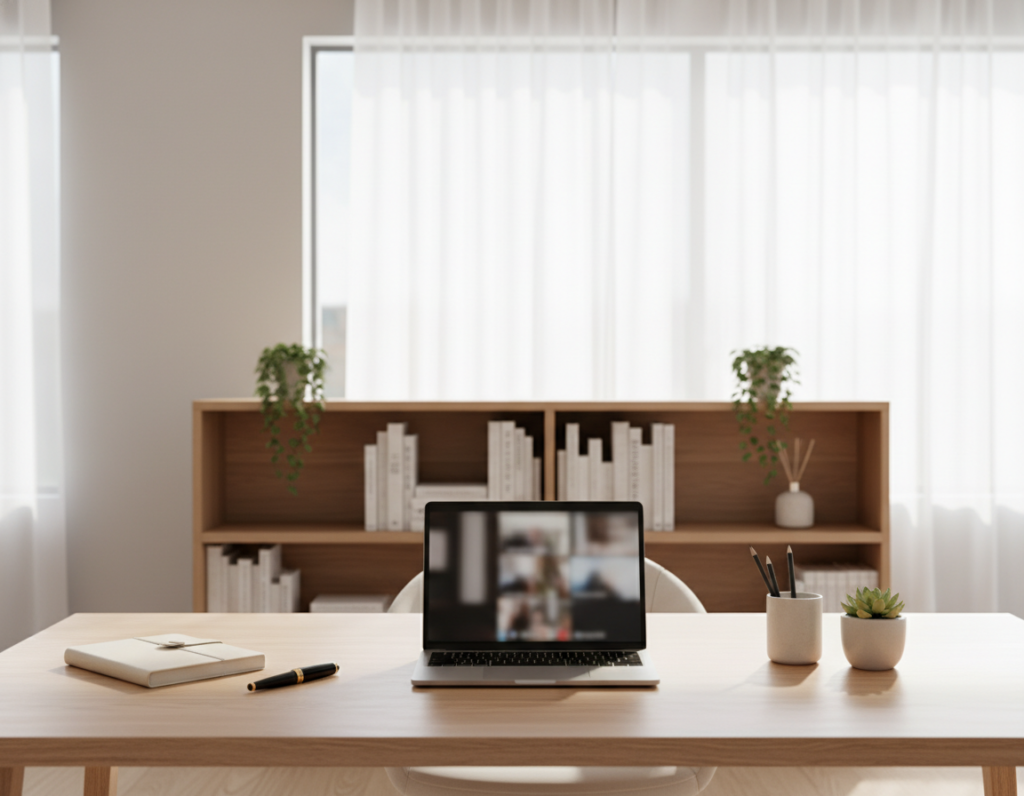
Place a shelf or screen behind the desk to hide living areas from the camera and cut visual noise. This helps the monitor and display remain the main view during calls and keeps the keyboard and mouse area tidy.
Adjust height and light so shelves do not cast shadows on the screen. A slim divider lets light pass while blocking distractions, which improves perceived focus and supports long work sessions.
- Use a bookshelf to store a few items and reduce clutter on the desk.
- Position the monitor so the top edge aligns with eye level for steady posture.
- Keep keyboard and mouse zones clear to speed tasks and boost productivity.
- Choose a divider that fits the room layout and preserves natural light.
“A clean visual boundary helps maintain focus and makes every meeting run smoother.”
Conclusion
Thoughtful gear and a tidy desk reduce friction and make tasks faster to finish.
Investing in a good standing desk and an ergonomic office chair supports comfort and long-term health. The right chair choices help maintain posture and keep energy steady through the day.
Simple wins like solid cable management and balanced light change how one appears and feels on video. Position the monitor for eye-level viewing and use a second monitor when tasks demand more screen space.
Small shifts to the desk and desks layout—plus reliable standing options—create a focused work home area. Refine these elements regularly to match changing needs and reach better daily results.