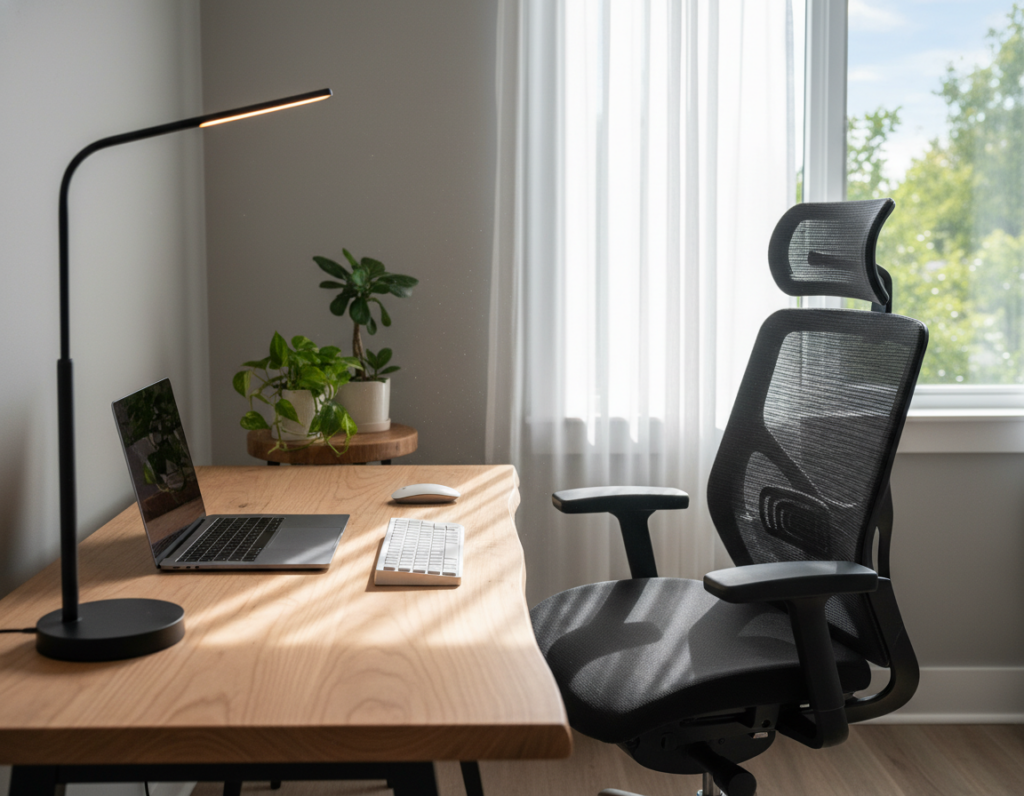
Many office workers face persistent neck pain because their monitor height setup does not match natural sitting posture. The OSHA Computer Workstations guide stresses a neutral head and neck position to prevent musculoskeletal issues.
When the screen is too high or too low, people tilt their head and strain their shoulders. This daily tension can cause upper back and arm discomfort after long hours of work.
Simple changes to the chair, desk, and monitor position can make the head sit directly front of the torso. That center line of sight keeps eyes and neck aligned and reduces the need to crane or tilt.
Proper ergonomics focus on distance, angle, and tilt so the top screen sits within a comfortable view. A brief adjustment can prevent chronic pain and boost comfort and productivity in the office.
The Physiological Impact of Poor Screen Positioning
Sustained, static viewing positions force muscles to hold odd angles and wear down comfort over a workday. The World Health Organization 2020 Guidelines warn that prolonged static posture raises the risk of chronic neck and shoulder problems.
The Risks of Static Posture
Holding the head forward or tilted for hours makes the neck and upper back contract. Over time this creates tension, reduced range of motion, and day‑end pain.
- Prolonged immobility increases muscle fatigue and cumulative micro‑injury.
- An incorrect monitor or screen position forces compensatory head movement.
- Using multiple monitors without alignment makes the head rotate, raising strain.
Identifying Early Signs of Strain
Early signs are easy to miss but important to catch. Eyes that feel tired, frequent readjustments of focus, and recurring shoulder tightness are warning signals.
- Blurred vision or eye strain after short tasks.
- Neck stiffness on waking or after a long work session.
- Leaning forward from a mismatched chair or desk, which loads the arms.
Simple alignment—keeping the top of the screen near eye level and the display centered—reduces tension and improves comfort throughout the day.
Establishing Your Ideal Monitor Height Setup
A correct screen position reduces neck strain and improves comfort during long work days. Follow ISO 9241-5 guidance: aim for a line of sight about 15–20 degrees below horizontal so the eyes rest slightly downward. This keeps the head neutral and lowers shoulder tension.
Begin by adjusting the chair and desk so the arms sit at a 90-degree angle. Then set the top third of the display near your eye level so the center of the screen is a little below your eyes.
Keep the screen roughly an arm’s length away to avoid eye fatigue. Use a monitor arm or riser for fine adjustments and place displays directly in front of the body to stop neck rotation.
- Follow ISO 9241-5: eyes 15–20° below horizontal.
- Align top screen edge: no head tilt required.
- Check distance: about an arm’s length for easy viewing.
Consistent workstation alignment prevents chronic pain and helps maintain focus, comfort, and productivity in the office.
Determining the Correct Viewing Distance
Using your extended arm as a ruler gives a practical starting point for proper screen distance. The arm length heuristic recommends placing the display about 50–70 cm away for most standard screens. This range helps prevent eye strain and keeps posture neutral.
The Arm Length Heuristic
Place the center of the screen where you can read everything without leaning. If the display is too close, the eyes work harder to focus. If it is too far, the user will tend to lean forward and load the neck and shoulders.
- Target distance: around 50–70 cm (arm’s length) to reduce eye fatigue.
- Position the computer so the entire screen is visible from a relaxed seating posture.
- Adjust desk depth or chair position if distance forces forward reaching.
- Check distance regularly; a small shift can change how the eyes focus and how the neck feels.
Right distance and angle let the eyes scan without extra head movement. When the viewing position is correct, comfort and productivity both improve during long shifts.
Optimizing Screen Angle for Neck Comfort
A ten- to twenty-degree upward tilt aligns the display with the body’s natural line of sight. This small change helps the eyes track downward slightly, which keeps the head in a neutral position and reduces neck strain.
Combine tilt and proper monitor height so the eye level stays steady. When the screen angle and top edge work together, the neck relaxes and posture improves.
Proper viewing angle also cuts glare and reflection, lowering eye fatigue during long tasks. If users share a desk, choose an arm or riser that allows quick angle changes.
- Set an upward tilt of 10–20° to match the natural downward gaze.
- Check distance and position periodically so eyes do not overwork.
- Reduce reflections by fine-tuning the screen angle for comfort.
For a step-by-step guide to placing the display correctly, see the best computer screen positioning resource. Regular checks keep the body comfortable and productive all day.
Managing External Light and Glare
Bright reflections and uneven room light force frequent head shifts that tire the eyes and neck. Controlling ambient light is a simple way to reduce eye strain and keep posture steady.
Mitigating Overhead Reflections
Overhead lights can bounce off the screen and create hotspots. A slight tilt of the display often removes those reflections.
Try a small upward or downward tilt until glare disappears. This keeps the viewing angle comfortable without making the user lean.
Positioning Relative to Windows
Place the monitor at a 90-degree angle from windows when possible. That orientation is the most effective way to avoid direct sunlight on the screen.
- Use shades or blinds if the desk cannot be moved.
- Adjust screen angle and level so eyes are not looking into bright sources.
- Keep distance and angle consistent to prevent repeated posture shifts.
Good lighting control is an essential part of an ergonomic desk. By managing glare, the computer position supports focus and protects visual comfort all day.
Adjusting Your Chair and Keyboard for Ergonomic Alignment
A well-adjusted chair and keyboard keep shoulders relaxed and wrists neutral during long typing sessions. Start by setting the seat so the feet rest flat on the floor and the lower back gets firm support.
Adjust the chair so the elbows form a 90-degree angle while typing. This angle reduces shoulder tension and protects the arms from repetitive strain.
Place the keyboard close to the body to avoid reaching. When the hands sit near the edge of the desk, the shoulders stay relaxed and the head remains comfortable.
Set the monitor height only after the chair and desk feel correct. Align the top of the screen with eye level so the neck holds a neutral position and viewing is effortless.
A keyboard tray can help keep wrists aligned and the arms supported. Many users find that a tray plus good lumbar support completes an effective ergonomics plan for the workstation.
- Elbows at 90° — reduces shoulder and arm strain.
- Feet flat — stabilizes posture and distance to the screen.
- Keyboard close — prevents reaching and preserves comfort.
Tailoring Your Workspace for Specific Tasks
Adjusting the work area for each task helps reduce neck strain and keeps focus sharp. A flexible arrangement lets the user switch quickly between sitting and standing and match the view to the task at hand.
Gaming and High-Focus Tasks
Gamers and players often prefer a slightly lower center for the display to keep the head forward but relaxed. They should still follow the 20-8-2 rhythm: 20 minutes seated, 8 standing, 2 moving.
- Lower center: reduces rapid head tilts during play.
- Keep the screen at a comfortable distance to prevent eye strain.
- Use a fast, easy-to-adjust arm for quick changes.
Office and Knowledge Work
For general office tasks, align the eye level with the top third of the screen. This position supports neutral neck posture for long reading and typing sessions.
- Check arm and shoulder alignment to avoid reach strain.
- Adjust when switching between sitting and standing; eye level shifts.
- See a detailed ergonomic guide for task-specific recommendations.
Creative and Coding Workflows
Creative and coding work benefit from positions that minimize head rotation. Place the screen so the eyes can scan content without frequent neck turns.
- Position secondary displays to the center when used often.
- Keep distance consistent to focus on content, not refocusing.
- Use an arm to quickly shift angle for sketching, editing, or review.
Considerations for Multi-Monitor Configurations
Multiple displays change how the eyes move and can increase neck rotation if not arranged thoughtfully.
Place the primary screen directly front so the head stays neutral and posture remains steady. Secondary screens should angle inward in a shallow V to reduce the need for large turns.
Keep screen level consistent across all displays. Matching the top edge and tilt prevents vertical head shifts that cause strain.
Choose IPS panels where color and contrast stay uniform at wide viewing angles. A 178-degree panel keeps content readable even when glancing to side screens, which helps the eyes and neck.
- Keep the main display directly front to limit rotation.
- Angle side displays toward the user for a steady viewing distance.
- Match screen levels and tilt so the eyes move horizontally, not vertically.
Prioritizing a single, central display while keeping others within easy reach improves comfort and supports long-term health.
Special Adjustments for Progressive and Bifocal Lenses
Wearers of progressive or bifocal lenses often need to change screen placement to read comfortably through the lower lens segment.
Lower the display by about 5–10 cm so the user looks through the lower portion for near work. This adjustment helps avoid tilting the head back and reduces neck strain.
Adjust the monitor height and tilt so the eyes rest naturally on the part of the lens used for reading. The screen angle should be slightly upward to bring text into the lower visual zone without forcing extension of the neck.
- Check posture: keep the head neutral while viewing the screen.
- Use a monitor arm: many workers with multifocal lenses rely on an arm for fine position changes.
- Balance distance and angle: match desk position to how the eyes focus through the lens.
If discomfort persists, consult an eye care professional for lens or workstation recommendations.
Conclusion
Taking a few minutes to fine-tune viewing angle and distance yields big gains in comfort and focus. Small checks of monitor position, screen tilt, and chair alignment protect the neck and shoulders from long-term pain.
Follow this practical guide to keep eye level steady and reduce eye strain during a full workday. Simple adjustments to angle and desk distance let the eyes scan without extra effort and lower muscle tension.
Investing time in ergonomics is proactive care. For a quick reference, see the ergonomic guide to confirm that the top screen and viewing choices support good posture and lasting comfort.