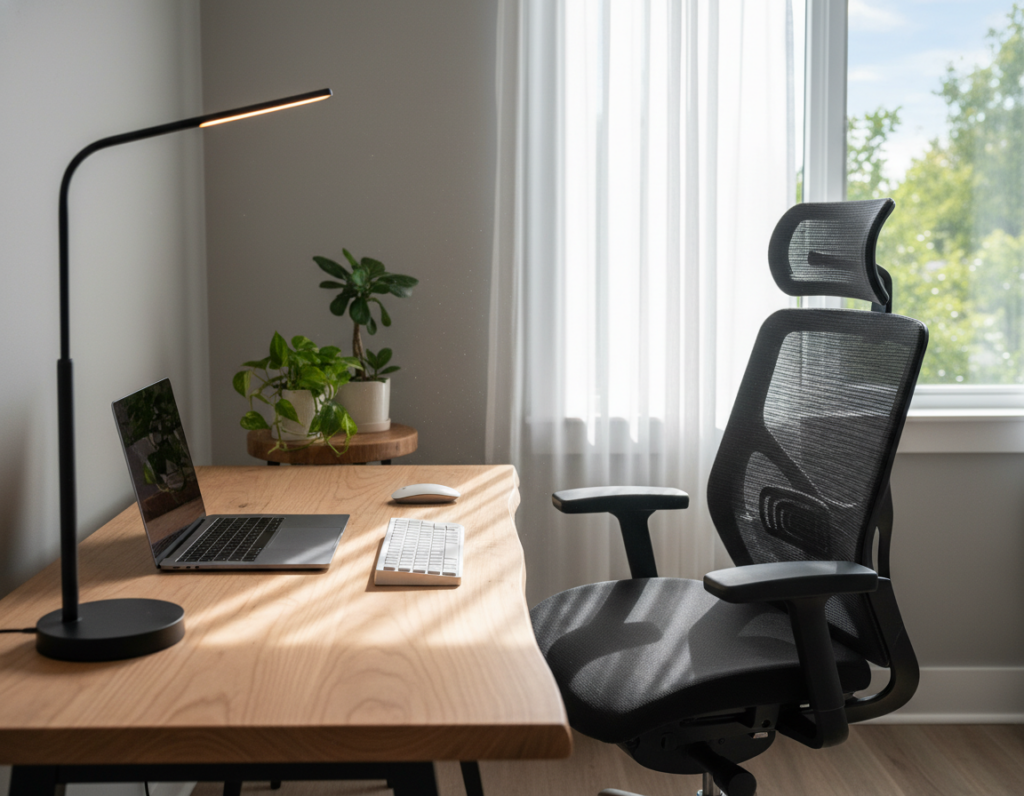
Choosing the right support makes a real difference in how a person uses their desk. He or she should match the choice to their daily tasks and the size of the workspace.
The decision between a laptop stand vs monitor arm starts with a clear look at the current setup. FlexiSpot lists specs for both monitor stand and monitor arm to help users pick gear that fits their desk.
A quality monitor arm can lift the screen off the surface and free up space for paperwork or peripherals. A solid monitor stand may suit smaller desks and fixed height needs.
Practical buyers weigh adjustability, the size of the monitor, and ergonomic height. They often find that the right option boosts comfort and cuts clutter, improving productivity and long-term well-being.
Understanding the Laptop Stand vs Monitor Arm Debate
How a screen is supported has a direct impact on comfort and productivity. Many people suffer neck and shoulder pain from viewing a computer screen at the wrong height for long periods. Correct positioning reduces eye strain and makes work easier.
Simple supports are often chosen by users who want a stable, budget-friendly way to raise their display to eye level. These options suit smaller desks and people who prefer a fixed setup.
Flexible supports give greater range: they let users tilt, swivel, and change height quickly to cut strain during varied tasks. This adjustability helps reduce fatigue for people who move between sitting and standing.
- Comfort and long-term health are key benefits for both types.
- Choice depends on desk size, the screen size, and personal ergonomic needs.
- Both options boost productivity by encouraging better posture and fewer breaks due to discomfort.
“Selecting the correct support is a vital choice whether you work from home or in a corporate office.”
For a deeper comparison of features and specs, see this monitor arms vs monitor stands guide.
How Monitor Arms Maximize Desk Space
Freeing the desktop surface often starts with moving one or more screens off the table. This simple change creates room for essential items, like document trays and keyboards, while keeping the work area tidy. Monitor arms are built to reclaim precious desk space and improve organization.
Cable Management Solutions
Cable management hides cords inside channels and clips along the arms. That reduces clutter and cuts cleaning time.
- Built-in channels route power and display cables out of sight.
- Velcro straps and clips keep wires bundled and secure.
- Fewer cables on the surface makes cleaning and reconfiguration easier.
Creating a Minimalist Workspace
High-quality arms enable tilt, swivel, and even 360-degree rotation so users position a screen quickly. They also support multi-monitor layouts, improving aesthetics and productivity in a small room or home office.
“Installing a reliable arm is one of the fastest ways to turn a crowded desk into a functional workspace.”
Benefits include added space, stable support for screens, and a cleaner design that helps teams and individuals focus better.
The Ergonomic Advantages of Proper Screen Positioning
Proper screen height is a simple change that produces big ergonomic gains at any desk. It helps users hold a neutral posture and reduces repeated strain during long work sessions.
Reducing Neck and Eye Strain
Keeping the monitor at eye level lowers pressure on the neck and shoulders. This position cuts the need for frequent head tilts.
Adjustability matters. Monitor arms provide tilt and swivel so the screen can be moved to avoid glare and reduce eye strain.
- Neutral height supports natural spine alignment and eases neck tension.
- Tilting the screen prevents reflections and lessens visual fatigue.
- Consistent eye level helps stop symptoms like redness and blurred vision.
“A well-positioned screen keeps users comfortable and focused, which improves both health and productivity.”
Benefits extend beyond comfort: a better position creates usable space on the desk and supports sustained focus during computer tasks.
Evaluating Installation Requirements and Desk Compatibility
Before finalizing a purchase, users should confirm that their desk can handle the added equipment. A quick check avoids damage and ensures long-term stability.
Surface Material Considerations
Surface Material Considerations
Different tops react differently to pressure. Thick wood or metal desks usually accept heavy supports without reinforcement.
Glass or thin particleboard may need a reinforcing plate or a dedicated clamp with protective padding. For delicate surfaces, choosing lighter display supports or using a base-mounted option can protect the finish and keep the workspace safe.
Weight Capacity Limits
Check load ratings closely. Many monitor arms support standard monitors, while heavy-duty models hold up to 44 lbs and 57 inches.
The Hexcal Studio monitor stand is an extreme example of stability, rated to support very heavy setups. Always match the listed capacity to your screen weight to maintain safety and comfort.
VESA Mounting Standards
VESA Mounting Standards
Most displays follow common patterns like 75x75mm or 100x100mm. Verify the VESA pattern on the back of the monitor before buying to avoid compatibility issues.
- Inspect the desk surface for thickness and material before installing a monitor arm.
- Confirm VESA pattern and weight limits to protect stability and performance.
- Consider stands offer simpler setup if clamping is not possible on your desk setup.
“Proper installation keeps the screen at the right height and reduces strain while preserving desk space.”
Comparing Costs and Long-Term Value
Upfront cost and long-term value shape the best choice for a busy workspace. Buyers see clear price bands: typical monitor arms sell from $40 to $200, while many monitor stands range from $20 to $900 depending on features and build.
For those on a tight budget, basic supports at the lower end deliver immediate gains in desk space. They improve position and cut clutter with a small outlay.
Higher-cost options often repay the investment. Aluminum or steel arms and robust stands offer better stability, longer life, and richer adjustability. That can reduce strain and boost daily productivity.
- Value tip: match the product to daily tasks; a premium piece helps active users more.
- Durability: metals outperform plastic for longevity and steady height control.
- Design and storage: some premium models add built-in organization that saves time and space.
“Spending a bit more on quality often pays off in comfort and fewer replacements.”
Choosing the Right Support for Your Specific Setup
A practical choice balances desk size, budget, and how often the screen needs repositioning. He or she should begin by measuring available surface and noting daily tasks.
If multiple people use the desk, flexible monitor arms make quick adjustments simple. They free desk space and improve posture for varied users. Cable management features on many models keep cords tidy.
For users who want a steady, low-maintenance view, a simple monitor stand provides stable height and easy eye level alignment. Larger screens may need heavy-duty supports or wider stands to keep stability and safe weight limits.
The desk design matters. Some desks cannot accept a clamp, so base-mounted options are the better fit. Always verify compatibility before buying to protect the surface and avoid extra work.
“The right support enhances productivity and protects long-term health.”
- Assess space, budget, and ergonomic needs first.
- Choose flexible arms for shared or changing tasks.
- Pick stable stands for single-user, fixed setups.
Final tip: prioritize comfort and posture. The correct support for a given setup reduces neck strain, saves desk space, and boosts productivity every workday.
Conclusion
A thoughtful choice of display support shapes daily comfort and the long-term usability of any workstation. He or she should weigh stability, flexibility, and the available surface before buying.
Simple supports deliver steady, budget-friendly performance and can add usable storage on the surface. More flexible solutions provide range and quick repositioning for shared or active settings.
Elevating the screen to eye level reduces neck and eye strain and boosts focus. By matching equipment to desk dimensions and ergonomic needs, a buyer gains comfort and better productivity for years to come.