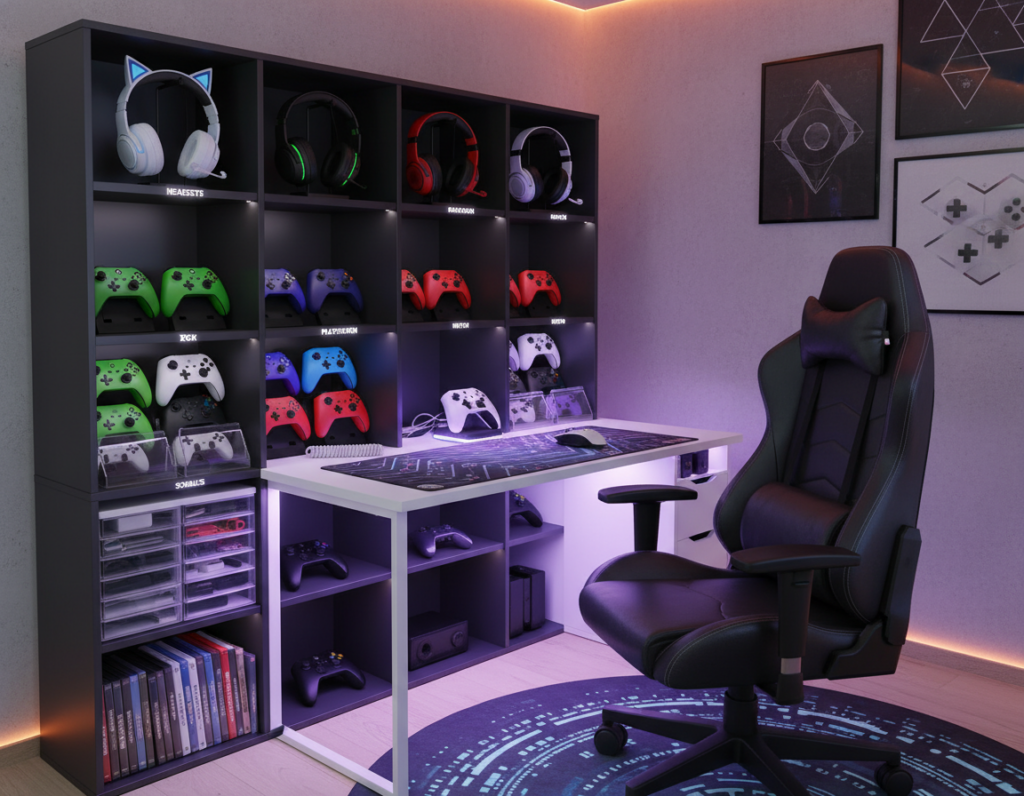
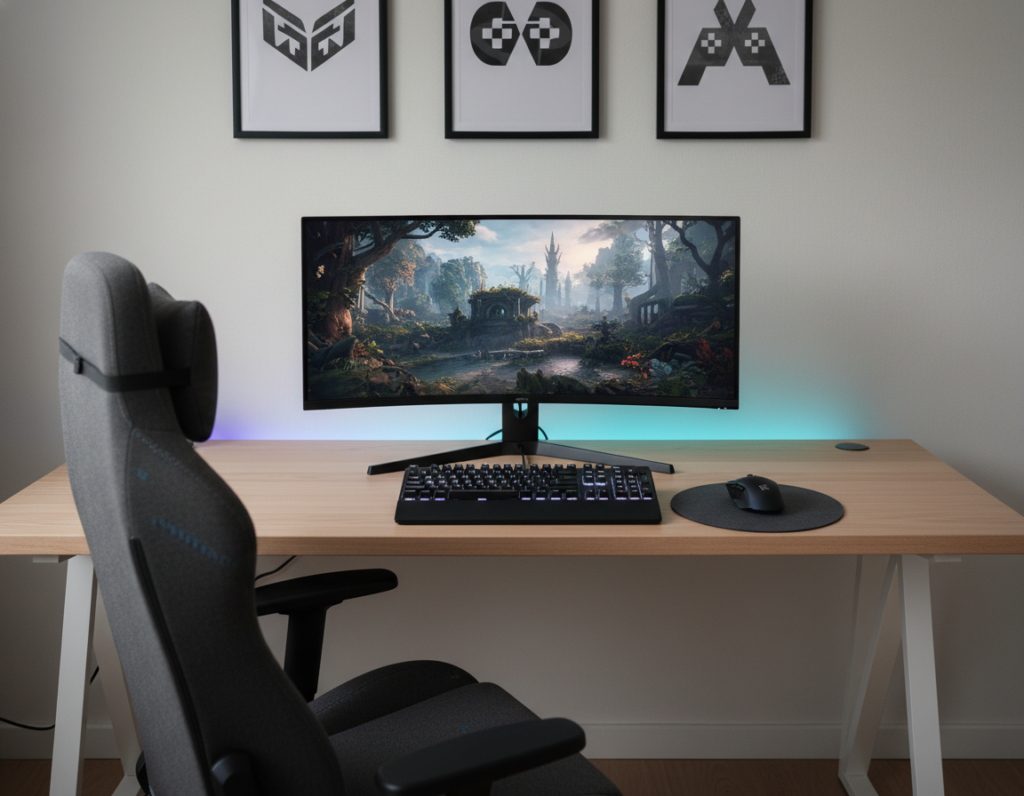
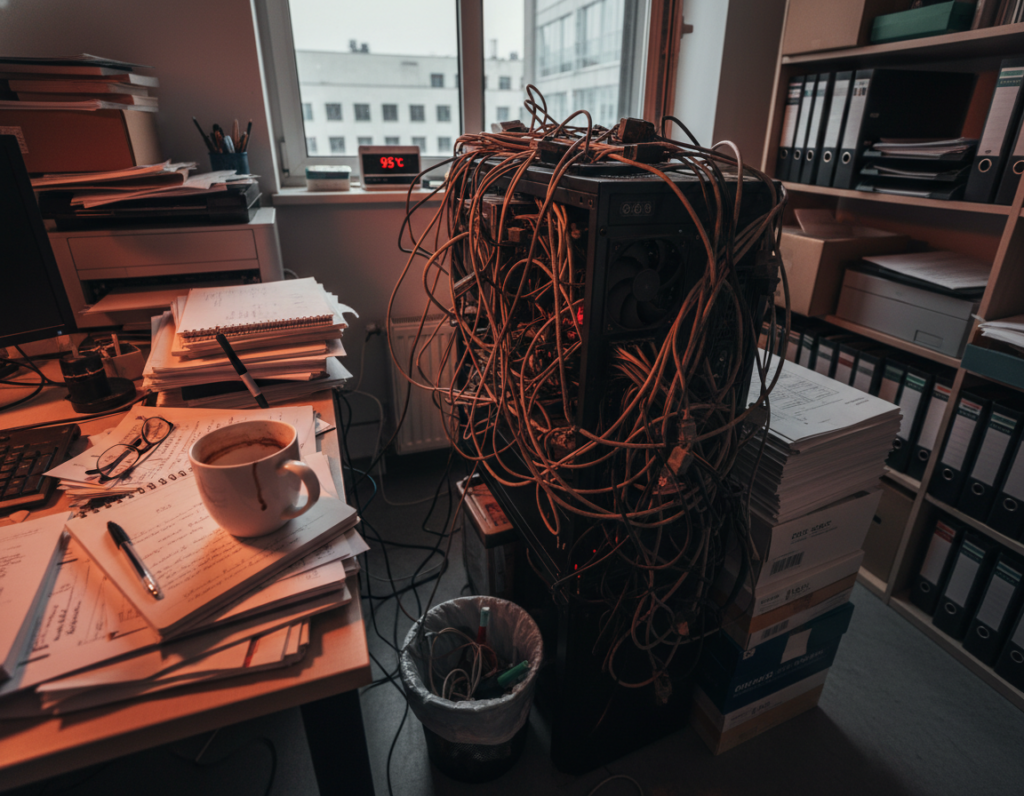
Many players are reshaping their space to build a focused, personal setup. Small choices make a big difference when limited area meets high expectations.
The right gaming mouse can change control and comfort. The Razer Viper V3 Pro, at 54g with near-perfect accuracy, shows how a light, precise tool improves the overall gaming experience.
Smart monitor backlights that sync with screen brightness also help. They cut eye strain during long sessions and add subtle mood with rgb lighting and light strips behind the computer.
Choosing thoughtful accessories and a clear setup helps players focus on favorite games. When cables are managed and each item has a place, performance and comfort rise together.
In short: pick gear that fits the player, the space, and the style to build a professional, comfortable environment.
The Foundation of an Effective Gaming Setup
Comfort and posture start with the right surface height and chair support.
Choosing the Right Standing Desk
Investing in a quality gaming desk sets the tone for any effective setup. The FlexiSpot standing model adds value with 4 customizable memory presets, so users can switch heights quickly and keep good posture during long sessions.
Proper height prevents strain and helps players keep focus during intense matches. Consider surface space for the monitor, mouse, and other essentials to avoid clutter and allow movement.
Selecting an Ergonomic Gaming Chair
An ergonomic chair gives crucial lumbar support and reduces fatigue for serious gamers. A seat with adjustable lumbar and armrests supports longer play and protects the back over time.
Prioritizing ergonomics creates a stable foundation that enhances the overall gaming experience and preserves health as sessions grow longer.
- Tip: Match chair height to desk presets for consistent posture.
- Tip: Ensure monitor is eye level to reduce neck strain.
- Tip: Leave enough space for mouse movement and wrist support.
Essential Gaming Desk Organization Strategies
A tidy surface and smart power choices make long sessions feel easier and less chaotic.
Power strips with a desk clamp keep outlets within reach while freeing the main surface for a mouse and peripherals. This simple swap reduces hazards and speeds up charging between rounds.
Good cable management prevents tangles that slow reactions and damage cords. Use adhesive clips, a cable tray, or Velcro wraps to keep cords bundled and out of sight.
“A clean setup improves focus and prolongs the life of gear.”
- Route power and USB lines under the table to clear visible space.
- Pair rgb lighting with wireless speakers for atmosphere without extra cables.
- Store frequently used gaming desk accessories within arm’s reach to reduce interruptions.
Result: a calm, efficient space that boosts comfort and overall experience for gamers during longer sessions.
Optimizing Your Monitor and Viewing Angles
A smart mount or stand can turn a cramped setup into a professional viewing station. Proper display placement improves sightlines and reduces neck strain. It also makes the whole space feel more deliberate and comfortable.
Benefits of Adjustable Monitor Arms
An adjustable arm lets users find the ideal position for clarity and posture. Raising or tilting the screen keeps the neck neutral and reduces fatigue.
Quick adjustments support different tasks—competitive play, streaming, or productivity—without moving the whole stand. A solid arm also clears surface space and keeps the display steady.
Advantages of Immersive Curved Displays
Curved screens widen the field of view and draw peripheral vision inward. The LG UltraGear 49-inch curved monitor with a 240Hz refresh rate delivers ultra-smooth motion for fast-paced games and better team coordination.
Immersion boosts situational awareness and visual clarity. When paired with the right mount and good lighting, the result is a more focused gaming experience and longer, healthier sessions.
- Tip: Center the screen at eye level to limit tilting.
- Tip: Match the monitor height to your chair for consistent posture.
- Tip: Consider a sturdy stand if an arm cannot support a large curved panel.
To learn how to align all the elements for better ergonomics, see this perfect desk setup guide.
Selecting the Right Peripherals for Your Workflow
High-quality input devices are the bridge between intent and action in every session. Peripherals influence speed, accuracy, and comfort across a compact setup.
Choosing a Wireless Mouse and Keyboard
Pick a wireless mouse that delivers consistent tracking. The Razer Viper V3 Pro, with 99.8% resolution accuracy, shows how a top-tier wireless mouse can cut input lag and improve precision.
A mechanical keyboard with programmable keys adds essential functionality. Custom macros and responsive switches speed complex inputs and reduce strain during long games.
- Keep the surface clean: wireless peripherals and a single charging dock reduce cable clutter and streamline charging.
- Audio options: wireless bluetooth speakers bring clear sound without extra cords.
- Match performance to workflow: test mouse sensitivity and key mapping to suit play style and productivity.
Result: the right combination of mouse, keyboard, and compact accessories makes a measurable difference in the overall gaming experience and daily computer use.
Mastering Cable Management for a Clean Surface
A clean cable run is the quiet upgrade that improves both look and function. It keeps a gaming desk tidy and reduces distractions during play or work.
Start with a dedicated cable organizer kit to route power and data lines out of sight. Components like cable trays, adhesive clips, and braided sleeves group cords into neat runs.
Effective cable management prevents tangles that interrupt the gaming experience. When cords are labeled and secured, swapping hardware or upgrading components is faster and safer.
Tip: use a clamp power strip and mount it under the desk to free surface space and keep plugs accessible.
“Consistent cable practices preserve the look and function of a setup and make future upgrades painless.”
- Route long power runs along the rear edge to avoid visible loops.
- Bundle peripheral cables and reserve slack in a single channel.
- Label ends for quick identification and easier maintenance.
Spending an hour on cable routing yields better daily use and a more professional space. Good management protects equipment and keeps the surface ready for action.
Enhancing Comfort with Ergonomic Additions
Small comfort upgrades make long sessions noticeably easier and safer. These additions focus on support and posture to protect the body during extended play and work.
Supportive Ergonomic Wrist Rests
A quality wrist rest reduces pressure on the wrist when using a keyboard and mouse. Products from brands like HyperX or CushyGel offer soft support that keeps hands neutral.
Placing a rest under the keyboard and one for the mouse helps prevent strain over long sessions.
Improving Posture with Footrests
A raised footrest encourages better leg position and improves circulation. A Fellowes or adjustable foam model lets users find a stable, healthy position.
This simple addition supports posture and reduces pressure on the lower back.
Using Ergonomic Cushions for Long Sessions
An ergonomic cushion transforms a chair by adding lumbar and tailbone support. Memory foam or wedge cushions keep the spine aligned and ease fatigue.
- Benefit: consistent support during long gaming sessions and work blocks.
- Tip: pair cushions with wireless peripherals and neat cable runs to focus on comfort.
- Result: better posture, fewer breaks, and an improved experience overall.
Integrating Smart Lighting for Atmosphere
Smart ambient light can shift a plain setup into a focused command center. The Dezctop RGB lighting kit, with four LED strips, is easy to install and adds layered color behind the monitor and shelves.
RGB lighting offers practical benefits beyond looks. Controlled brightness and color reduce eye strain during long sessions and create clear visual contrast for the monitor.
They can sync with sound, too. Pairing ambient light with wireless bluetooth speakers builds an immersive audio‑visual scene that enhances the gaming experience and keeps players engaged.
Simple power options and app controls make setups flexible. Users can set schedules, match color to content, and conserve power with timed shutoffs.
- Tip: place strips behind the monitor and along shelves for balanced glow.
- Tip: use warm tones for long sessions to ease eye fatigue.
- Tip: sync lights with speakers for dynamic effects during play.
Well‑chosen light turns a surface into a stylish, functional command area. It improves focus, enhances atmosphere, and makes the overall experience more enjoyable.
Utilizing Vertical Space and Storage Solutions
Maximizing vertical storage frees valuable surface and keeps must-have gear within reach. Simple hooks, shelves, and mounts make the top of a setup work harder without sacrificing style.
Keeping headphones accessible is one of the easiest improvements. A dedicated stand or wall hook keeps headphones off the surface and prevents wear. Brands like Satechi and Corsair offer sturdy stands that double as a focal point.
A proper storage plan also helps with cable management and power routing. Use under-shelf trays, adhesive clips, and a clamp power strip to hide cords and keep charging tidy.
- Benefit: frees room for a clear mouse and keyboard area for better control.
- Tip: choose a stand with built-in USB ports for convenient charging.
- Result: a polished setup that looks professional and protects gear.
Investing in smart shelving and a few quality desk accessories yields big returns in function and longevity. Vertical solutions make the most of limited space and keep the surface ready for action.
Advanced Tech Upgrades for Streamlined Control
Speed and reliable connections are the backbone of a high-performance setup. A USB 3.2 Gen 2 hub delivering up to 10 Gbit/s reduces transfer lag and keeps external drives and capture cards responsive.
Pair fast ports with a precise gaming mouse and a mechanical keyboard for crisp inputs. These peripherals improve reaction time and give consistent feedback during intense play.
Integrating smart rgb lighting and wireless speakers boosts immersion and offers flexible mood options. A dedicated monitor stand clears room and aligns the screen for better posture.
- Cable management: route cables and mount power strips to free surface space.
- Power and charging: use powered USB hubs and fast chargers for ready devices.
- Desk accessories: choose hubs and mounts that centralize ports and reduce clutter.
“Small upgrades to ports and peripherals make an outsized impact on control and daily reliability.”
With these tech upgrades, the computer experience becomes smoother and more focused. The result is a streamlined area that supports top performance and easy use.
Conclusion
Small, purposeful upgrades make a measurable impact on how someone plays and performs. A clear gaming setup that balances comfort and function helps users stay focused and feel better during long sessions.
Every addition matters: a sturdy monitor stand, soft wrist support, and subtle rgb lighting all change the user experience. Thoughtful accessories reduce strain and create a more professional space.
With good posture, tidy cable runs, and a few quality additions, gamers can play longer and react faster. Whether solo or with a team, this practical way of building a setup makes a real difference for games and daily use.